

Managing Clients
Clients are reusable records for the people and organisations you do work for. Creating a client once means you can link them to certificates and documents without retyping their details every time.
Why create clients?
You can fill in a certificate without creating a client at all - but setting one up saves time and keeps things consistent. Here is what you get:
When you select a client on a certificate or document, their default address is filled in automatically. No copying and pasting between jobs.
Open a client record and you will see every certificate and document linked to them, making it easy to look up previous jobs or reissue paperwork.
The search page matches on client name, email, and address fields - so you can find all the work for a particular client or site quickly.
Creating a client
Navigate to Clients in the sidebar and click Create client.
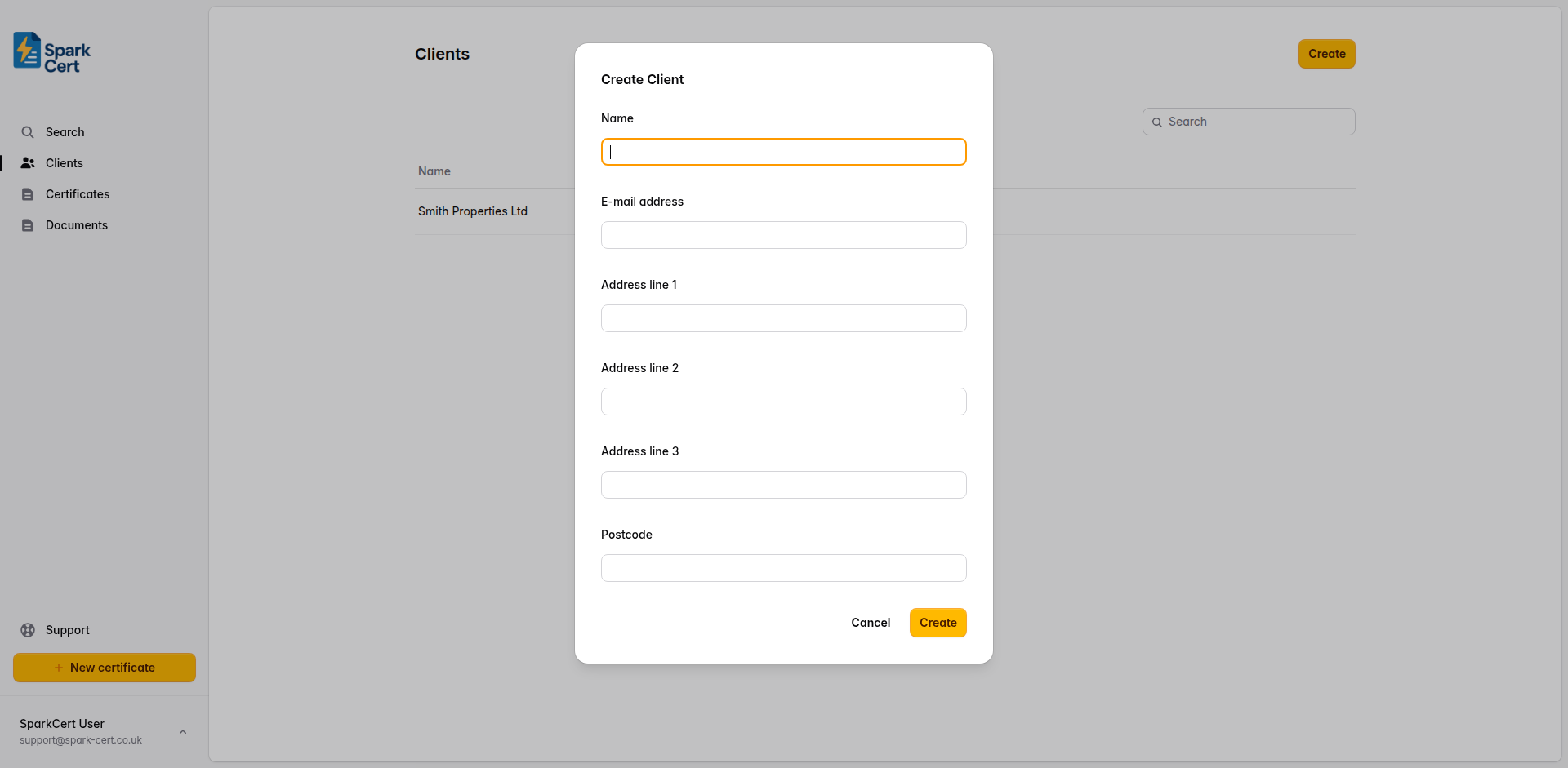
The client’s name - this could be a person or a company. This is the name shown in dropdown menus when linking a client to a certificate.
Optional. Useful for keeping a record of how to contact the client.
You can also create a client inline while filling in a certificate or document - there is no need to visit the Clients page first.
Managing addresses
Each client can have multiple addresses. This is useful for landlords or property management companies where you do work at several sites for the same client.
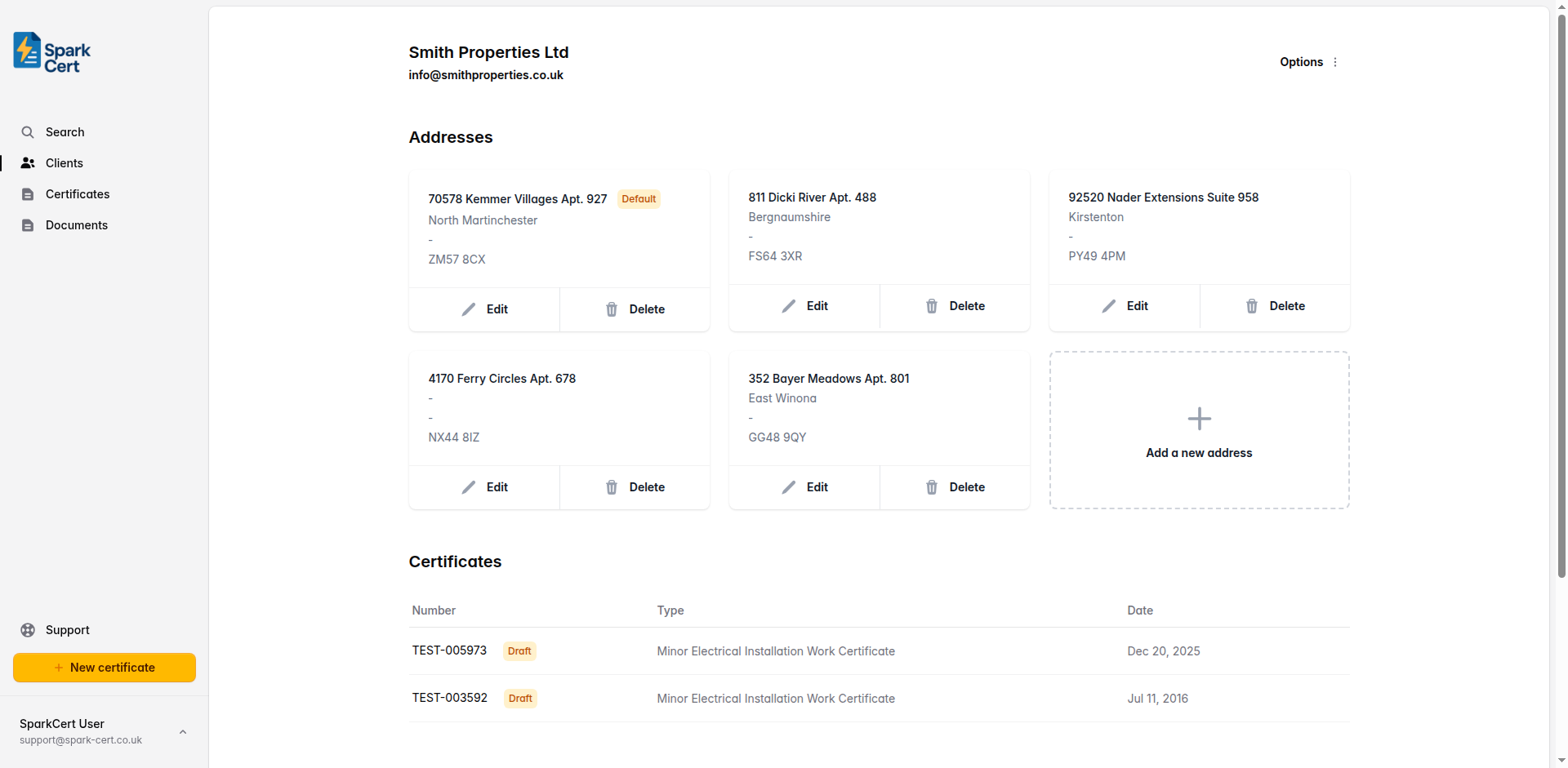
The first line of the address - typically the building number and street name.
Optional extra lines for the town, county, or any other address details.
The postcode for this address.
One address is marked as the default. When you select this client on a certificate or document, the default address is the one that gets filled in automatically.
The client detail page
Click on any client to open their detail page. From here you can edit their name and email, manage their addresses, and see a list of all certificates and documents linked to that client.
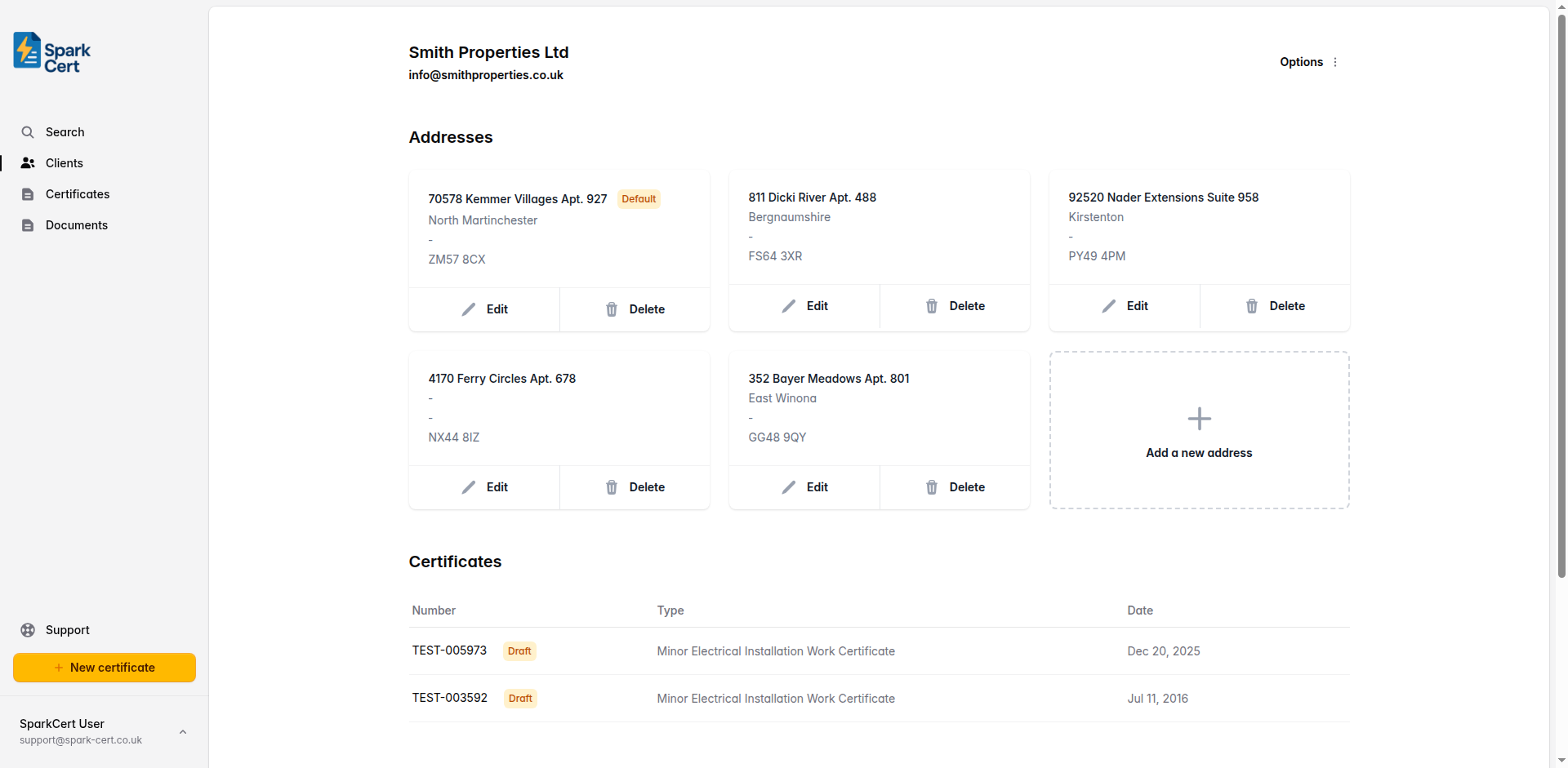
Deleting a client will not delete the certificates or documents linked to them. Those records will remain but will no longer be associated with a client.