

Settings
The Settings page lets you configure defaults that are applied across your certificates and PDFs. Setting these up once means less repetitive typing on every certificate you create.
Declaration defaults
Most certificates have a declaration section where you sign off the work. These fields are pre-filled on every new certificate so you do not have to type them each time.
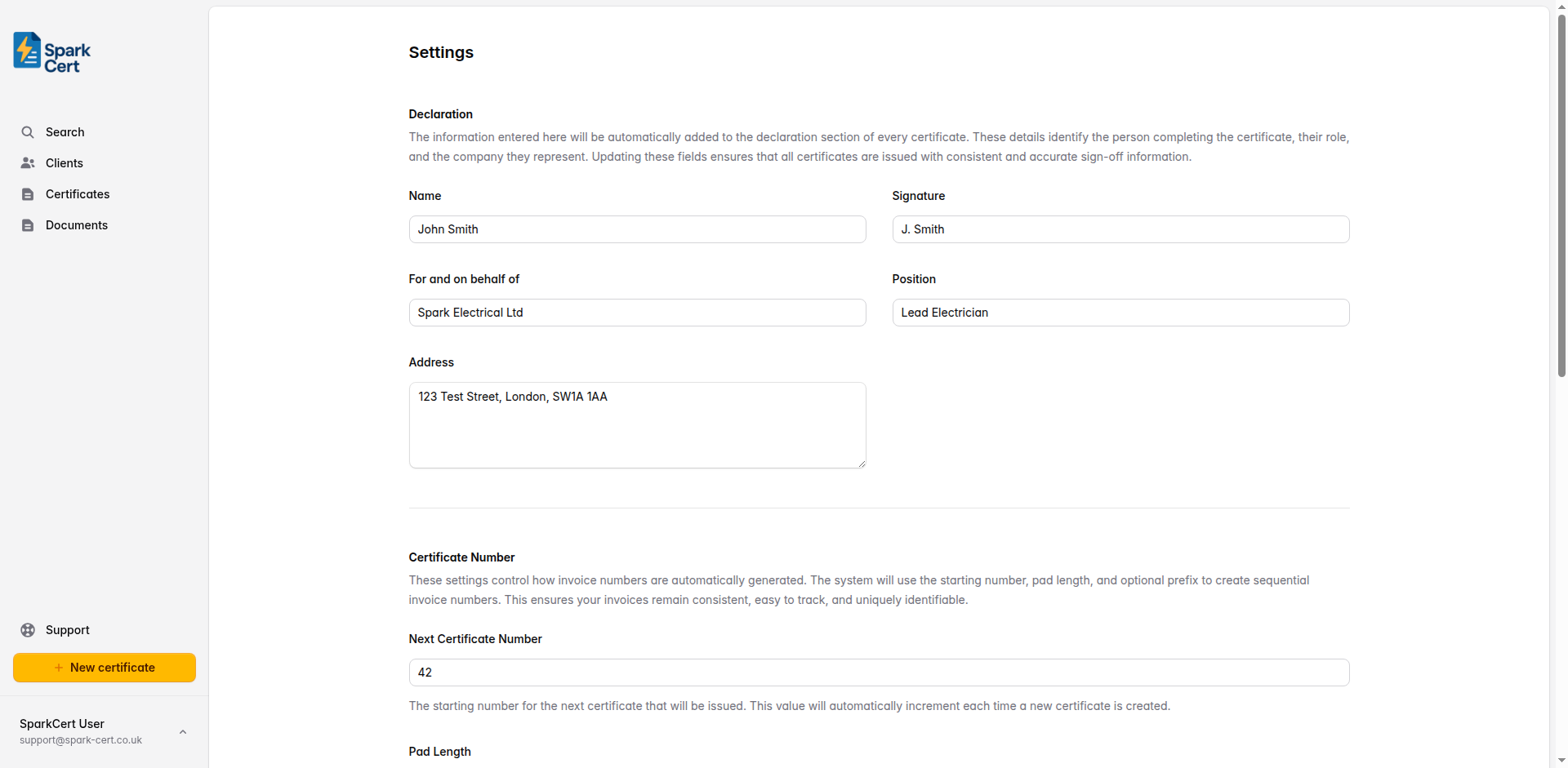
Your name as it should appear in the declaration section of certificates and documents.
Your typed signature - this appears as the digital signature on issued PDFs.
The company or trading name you are signing on behalf of. Leave blank if you are signing in your own name.
Your job title or position - for example, “Electrician”, “Director”, or “Approved Contractor”.
Your business address. This is used in the declaration and signatory sections of certificates.
Certificate numbering
SparkCert can automatically number your certificates with a prefix, leading zeros, and a sequential number. Configure the format here and each new certificate will get the next number in the sequence.
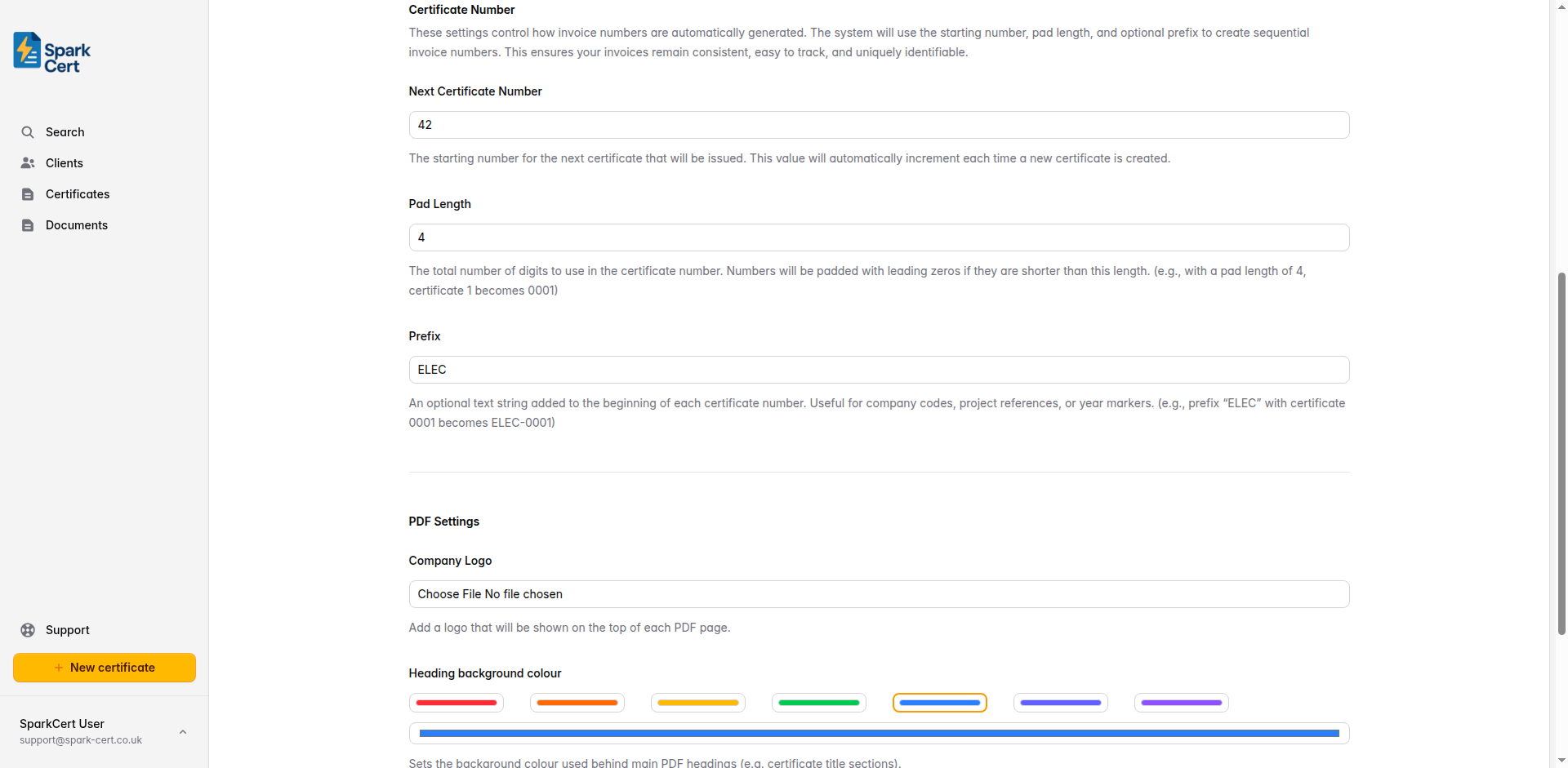
Optional text added before the number - for example, “ELEC” or “SC”. Leave blank to use numbers only.
The total number of digits, padded with leading zeros. A pad length of 4 with number 1 gives “0001”.
The number that will be assigned to the next certificate you create. This increments automatically after each certificate. You can adjust it here if you need to continue from an existing numbering scheme.
For example, a prefix of “ELEC”, pad length of 4, and next number of 1 will produce certificate numbers like ELEC-0001, ELEC-0002, ELEC-0003, and so on.
PDF customisation
Personalise the look of your issued PDFs with your company logo and brand colours. These settings apply to all certificates and documents you issue.
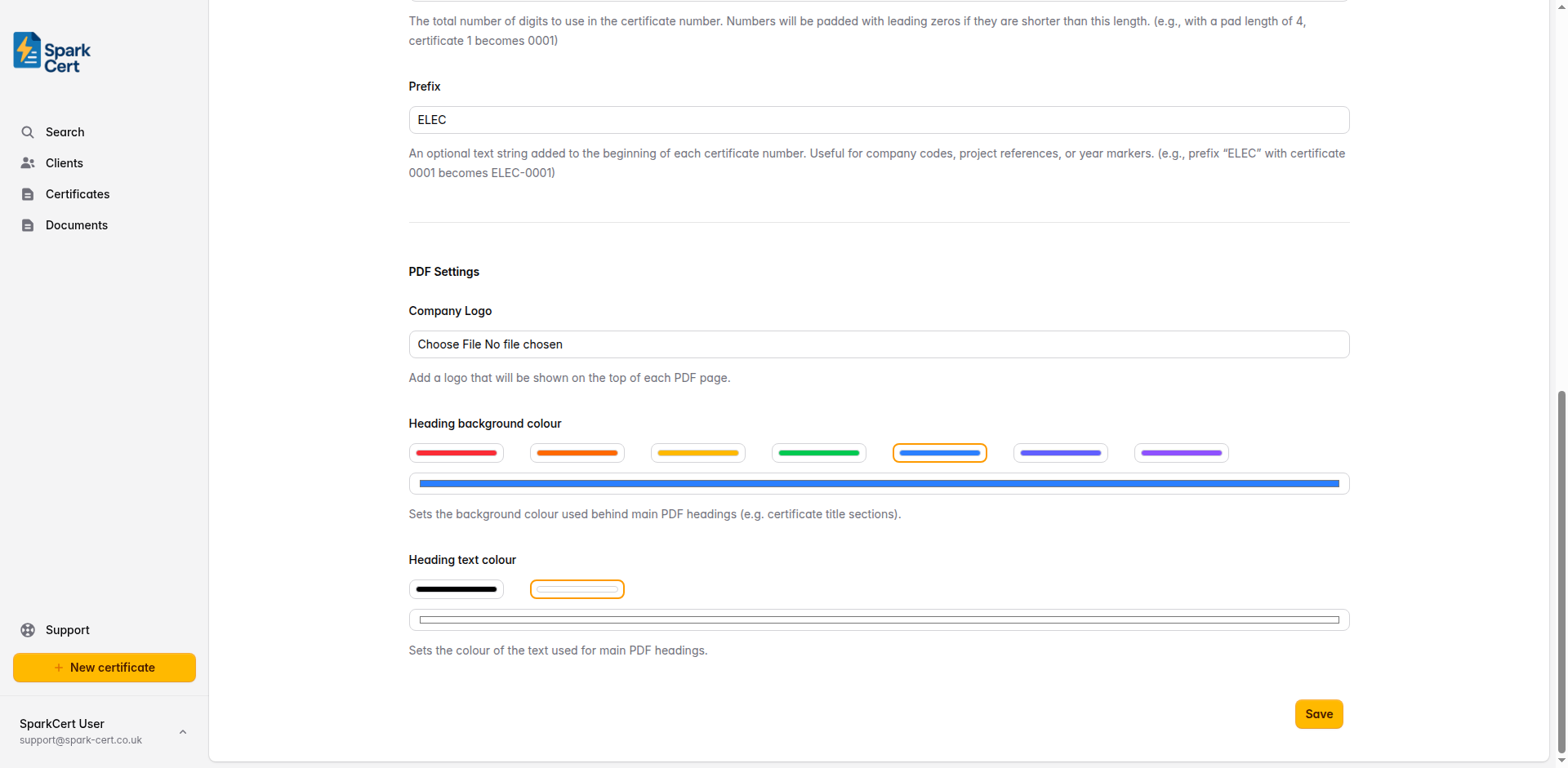
Upload a PNG or JPEG logo that will appear on the header of every issued PDF. You can replace or delete it at any time.
The background colour used in the heading rows and section headers of your PDFs. Choose from the preset palette or pick a custom colour to match your branding.
Choose between black or white text for the heading rows. Pick whichever is easier to read against your chosen background colour.