How to Use Search
Search lets you find any certificate, document, or client from a single page. Rather than browsing through separate lists, you can type a keyword and filter by category, type, or status to get straight to what you need.
Getting started
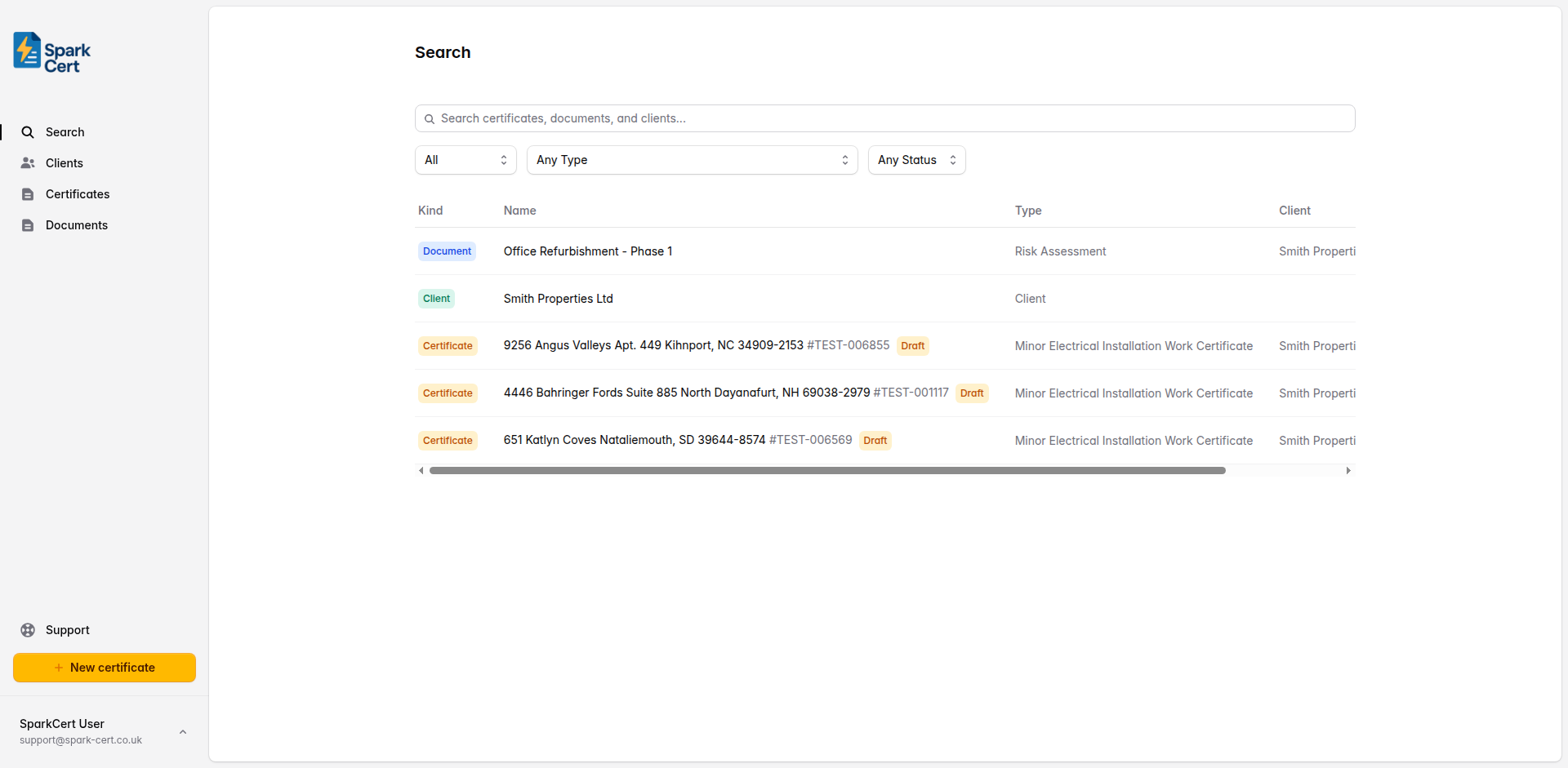
Click Search in the sidebar menu. You will see a search bar at the top of the page with a set of filters below it. Results appear instantly as you type.
What you can search
Search works across three types of record at the same time:
Matches against the certificate name, certificate number, and client name. Both draft and issued certificates are included.
Matches against the project reference. This covers risk assessments, method statements, and any other document types.
Matches against the client name, email address, and all address fields including postcode. Useful for finding every record linked to a particular client or location.
Filters
Use the filters below the search bar to narrow your results. Filters combine with the search text, so you can search for a keyword and then filter by category or status.
Show All results, or limit to just Certificates, Documents, or Clients.
Filter by a specific certificate or document type - for example, only Minor Works certificates or only Risk Assessments. This filter appears when you select the Certificates or Documents category.
Show only Draft or only Issued certificates. This is helpful when you want to find certificates that still need completing.
Understanding results
Each result shows a colour-coded badge indicating whether it is a certificate, document, or client. You will also see the name, type, linked client, creation date, and status. Click any result to go straight to it.
Results update as you type with a short delay, so there is no need to press Enter. If you clear the search bar, you will see your most recent records across all categories.