

Contractors
Certificates like the EIC require details for the designer, installer, and commissioning contractor. The Contractors page lets you save these details once so you can select them from a dropdown instead of typing them out on every certificate.
When do you need contractors?
Any certificate that has a signatory section will ask for contractor details. On an EIC this includes the designer, installer, and commissioning engineer. On a Minor Works certificate it is the person responsible for the installation. If you are a sole trader and always sign as the same person, saving yourself as a contractor means those fields are pre-filled on every job.
If you work with subcontractors or other electricians, save each one as a separate contractor so you can select the right person for each role.
Creating a contractor
Navigate to Contractors in the sidebar and click Create contractor.
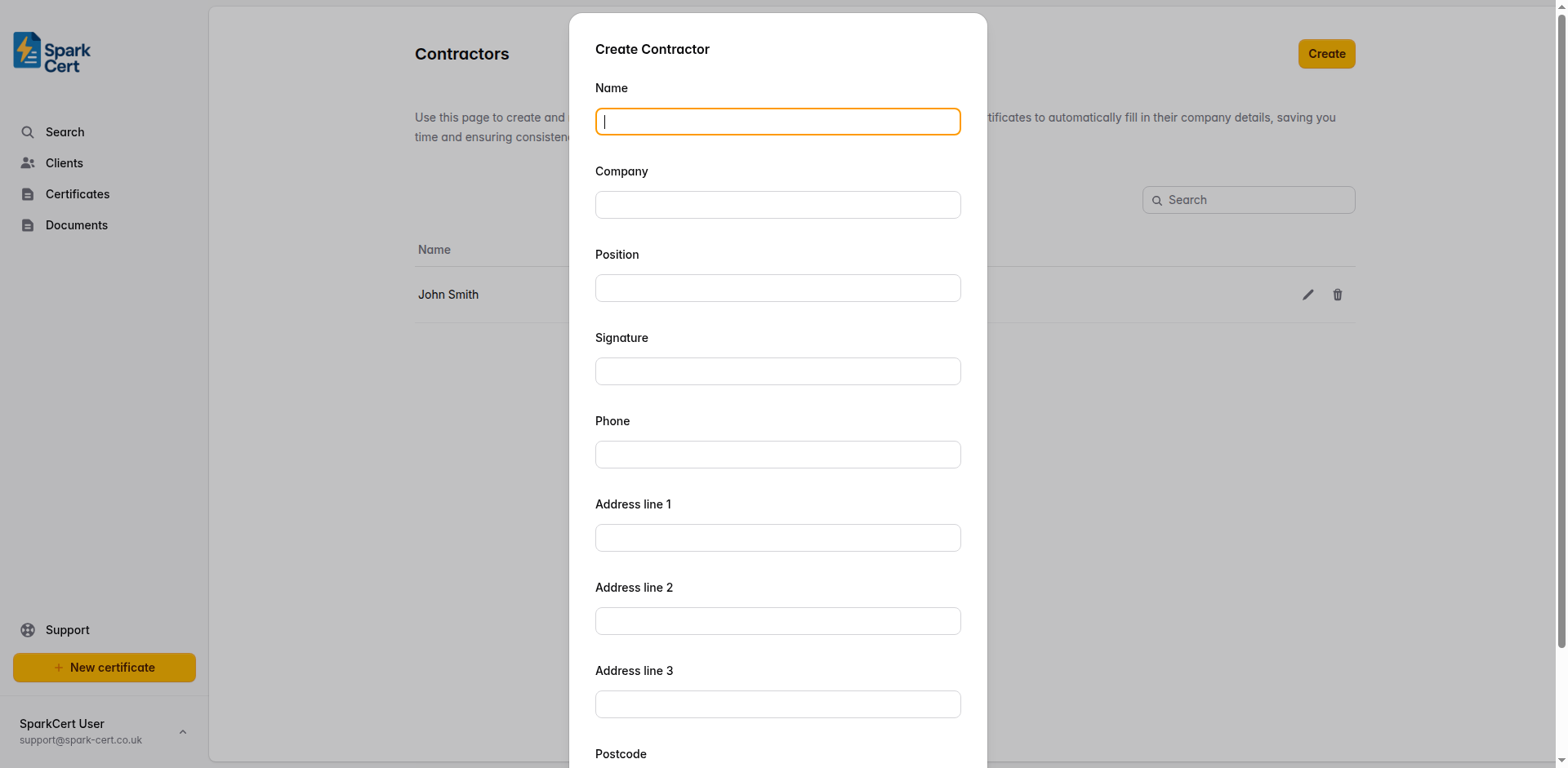
The contractor’s full name. This is the label shown in the dropdown when selecting a contractor on a certificate.
The company or trading name the contractor works under.
Their job title or role - for example, “Electrician”, “Approved Contractor”, or “Director”.
A typed signature that will be used as their digital signature on issued PDFs.
A contact number for the contractor.
The contractor’s business address, split across three lines plus a postcode. This appears in the signatory section of issued certificates.
Using contractors on certificates
When filling in a certificate with a signatory or contractor section, you will see a dropdown to select a saved contractor. Selecting one fills in all the fields for that section - name, company, position, signature, and address. You can still edit any field after selecting if something needs to be different for a particular job.
Changes you make to contractor details on a certificate do not update the saved contractor record. Each certificate keeps its own copy of the details at the time of filling in.